Azure 특정 sku에 대한 quota 부족으로 신규 vm 생성 작업 실패가 발생하여 vm 사용량이 80% 이상이면 팀즈를 통해 알람이 오도록 설정.
Quotas Alert을 Teams로 수신
- Managed Identity 생성
- Action Group 생성
- Quotas Alert 설정
- Logic apps 설정
- Action Group Alert URL 수정
Managed Identity 생성
- Managed Identities 검색 -> Create 클릭

- Managed Identity 정보 입력
- Subscription - 모니터링 VM이 있는 구독 선택
- Resource group, Name, Region은 적당히 선택하고, 나머지는 기본 값 사용

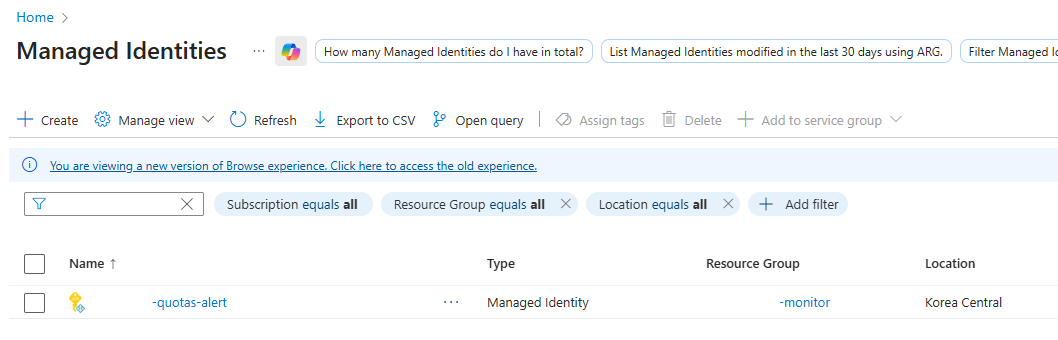
- 생성 확인
- 생성 한 Managed Identity에 들어가서 Azure role assignments 선택 후 add role assignmemt (Preview) 클릭

> Scope - Subscription 선택
> Subscription - Quotas 추이를 모니터링할 대상 리소스가 있는 구독 선택
> Role - Reader 선택

- 설정 확인

Action Group 생성
- Monitor 접속 후 Alerts 클릭

- Action groups 선택 후 Create 클릭

Basic 정보 입력

Notifications 넘어가고
Actions 정보 입력
> Action type - Webhock
> URL - Teams web hook URL -> 이 주소는 마지막에 logic apps 주소로 변경 됨
> Enable the common alert schema - Yes

OK 클릭 후 Name은 적당히 입력

- 생성 된 Action groups 확인

Quotas Alert 설정
- Quotas 접속 후 My quotas 클릭


- 필터에서 Quotas를 모니터링 할 대상 VM 리소스가 있는 Subscription과 region을 선택

- 알람을 설정할 VM SKU Family 검색 후 이름(Standard DDSv5 Family vCPUs)을 클릭

- Create Alert Rule (Preview) 클릭

> Alert rule name - 적당히 입력
> Alert me when the usage % reaches: - 알람이 발생할 % 시점 입력
> Severity - 알람의 중요도에 따라 설정
> Frequency of evaluation - 5분으로 설정
> Resource group - 적당히 선택
> Managed Identity - 앞에서 생성한 MI 지정
Use an existing action group 선택 후 앞에서 생선한 Action Group을 지정

Logic apps 설정
- Logic apps 접속 후 Create 클릭

- 사용량이 많지 않아 Multi-tenant 선택

- 기본값 입력(적당히~)

- 설정 완료

- 생성 된 Logic apps 이름 클릭 후 Logic app designer 선택

- Logic app designer 구성
Add a trigger 클릭 후 When an HTTP request is received 검색 및 추가


아래쪽 + 누룬 후 Add an action 클릭 → Initialize variables 검색 후 추가
Initialize variables 아래쪽 + 누룬 후 Add an action 클릭 → Compose 검색 후 추가 (Compose 이름 변경 - FinalCard)
Compose 아래쪽 + 누룬 후 Add an action 클릭 → Post card in a chat or channel 검색 후 추가

- Initialize variables 변수 등록
Type은 String, Value는 함수로 등록
> varAlertRule - coalesce(string(triggerBody()?['data']?['essentials']?['alertRule']), 'N/A')
> varSeverity - coalesce(string(triggerBody()?['data']?['essentials']?['severity']), 'N/A')
> varFiredTime - if(empty(triggerBody()?['data']?['essentials']?['firedDateTime']), 'N/A', formatDateTime(convertTimeZone(triggerBody()?['data']?['essentials']?['firedDateTime'], 'UTC', 'Korea Standard Time'), 'yyyy-MM-dd HH:mm:ss'))
> varLocation - if(empty(triggerBody()?['data']?['alertContext']?['condition']?['allOf']), 'N/A', coalesce(string(first(triggerBody()?['data']?['alertContext']?['condition']?['allOf'])?['dimensions']?[0]?['value']), 'N/A'))
> varQuotaName - if(empty(triggerBody()?['data']?['alertContext']?['condition']?['allOf']), 'N/A', coalesce(string(first(triggerBody()?['data']?['alertContext']?['condition']?['allOf'])?['dimensions']?[1]?['value']), 'N/A'))
> varUsage - if(empty(triggerBody()?['data']?['alertContext']?['condition']?['allOf']), 'N/A', if(equals(string(coalesce(first(triggerBody()?['data']?['alertContext']?['condition']?['allOf'])?['metricValue'], '')), ''), 'N/A', concat(string(first(triggerBody()?['data']?['alertContext']?['condition']?['allOf'])?['metricValue']), '%')))
> varThreshold - if(empty(triggerBody()?['data']?['alertContext']?['condition']?['allOf']), 'N/A', if(equals(string(coalesce(first(triggerBody()?['data']?['alertContext']?['condition']?['allOf'])?['threshold'], '')), ''), 'N/A', concat(string(first(triggerBody()?['data']?['alertContext']?['condition']?['allOf'])?['threshold']), '%')))
> varPortalLink - coalesce(string(triggerBody()?['data']?['essentials']?['alertPortalLink']), string(triggerBody()?['data']?['essentials']?['investigationLink']), 'https://portal.azure.com')
> varMonitorCondition - coalesce(string(triggerBody()?['data']?['essentials']?['monitorCondition']), 'Unknown')
> varCardStyle - if(equals(coalesce(triggerBody()?['data']?['essentials']?['monitorCondition'], 'Fired'), 'Resolved'), 'default', 'default')
> varCardColor - if(equals(coalesce(triggerBody()?['data']?['essentials']?['monitorCondition'], 'Fired'), 'Resolved'), 'Good', 'Attention')
> varCardTitle - if(equals(coalesce(triggerBody()?['data']?['essentials']?['monitorCondition'], 'Fired'), 'Resolved'), '✅ Azure VM Quota Alert - Resolved', '🚨 Azure VM Quota Alert - Fired')
> varCardMessage - if(equals(coalesce(triggerBody()?['data']?['essentials']?['monitorCondition'], 'Fired'), 'Resolved'), '✅ 할당량 사용량이 정상 범위로 복구되었습니다.', '⚠️ VM 할당량이 임계치를 초과했습니다. 즉시 확인이 필요합니다.')

등록 완료

- FinalCard 등록
클릭 후 Inputs 에 아래 내용 입력
{
"$schema": "http://adaptivecards.io/schemas/adaptive-card.json",
"type": "AdaptiveCard",
"version": "1.2",
"body": [
{
"type": "Container",
"style": "",
"items": [
{
"type": "ColumnSet",
"columns": [
{
"type": "Column",
"width": "auto",
"items": [
{
"type": "TextBlock",
"text": "",
"size": "Large"
}
]
},
{
"type": "Column",
"width": "stretch",
"items": [
{
"type": "TextBlock",
"text": "",
"weight": "Bolder",
"size": "Large",
"color": "",
"wrap": true
}
]
}
]
}
]
},
{
"type": "TextBlock",
"text": " **Summary:** ",
"wrap": true,
"weight": "Bolder",
"spacing": "Medium"
},
{
"type": "FactSet",
"spacing": "Small",
"facts": [
{
"title": "규칙 이름",
"value": ""
},
{
"title": "심각도",
"value": ""
},
{
"title": "발생 시간",
"value": ""
}
]
},
{
"type": "TextBlock",
"text": "📊 **상세 할당량 정보**",
"weight": "Bolder",
"spacing": "Medium",
"separator": true,
"wrap": true
},
{
"type": "FactSet",
"spacing": "Small",
"facts": [
{
"title": "지역",
"value": ""
},
{
"title": "쿼터 이름",
"value": ""
},
{
"title": "현재 사용량",
"value": ""
},
{
"title": "임계치",
"value": ""
}
]
},
{
"type": "TextBlock",
"text": "",
"wrap": true,
"weight": "Bolder",
"color": "",
"spacing": "Medium",
"separator": true
},
{
"type": "ActionSet",
"actions": [
{
"type": "Action.OpenUrl",
"title": "Azure Portal에서 보기",
"url": ""
}
]
}
]
}
- Post card in a chat or channel 등록
클릭 후 Inputs 에 아래 내용을 수식으로 입력
outputs('CardJson')
- Save 클릭하여 등록 내용 저장
Action Group Alert URL 수정
- Logic apps → Logic app designer 에서 When an HTTP request is received 클릭 후 HTTP URL 복사
- Monitor → Alerts → Action groups 이동 후 생성했던 action group 선택 → Edit 클릭

- Webhook 연필 누르고 주소 수정 후 저장

- Logic apps → Logic app designer 이동 후 상단의 Run 실행

정상 실행 확인 및 팀즈 메시지 확인

(양식이 제대로 적용되었는지 확인 용도)

(실제 발생 메시지)

